
Make an instructor available for bookings
To make an employee available as an instructor, turn on Enable scheduling and assign at least one location. The employee then shows as an instructor in bookings at those locations and on the Instructors page of the Student Portal.
Before you start
The employee must exist. See Add an employee.
Enable scheduling for an employee
- In the sidebar, click Employees & staff.
- Click the name of the employee.
- In the Details card, click the pencil icon. You can also click the more menu (⋮) and click Edit.
- In the Scheduling section, turn on Enable scheduling.
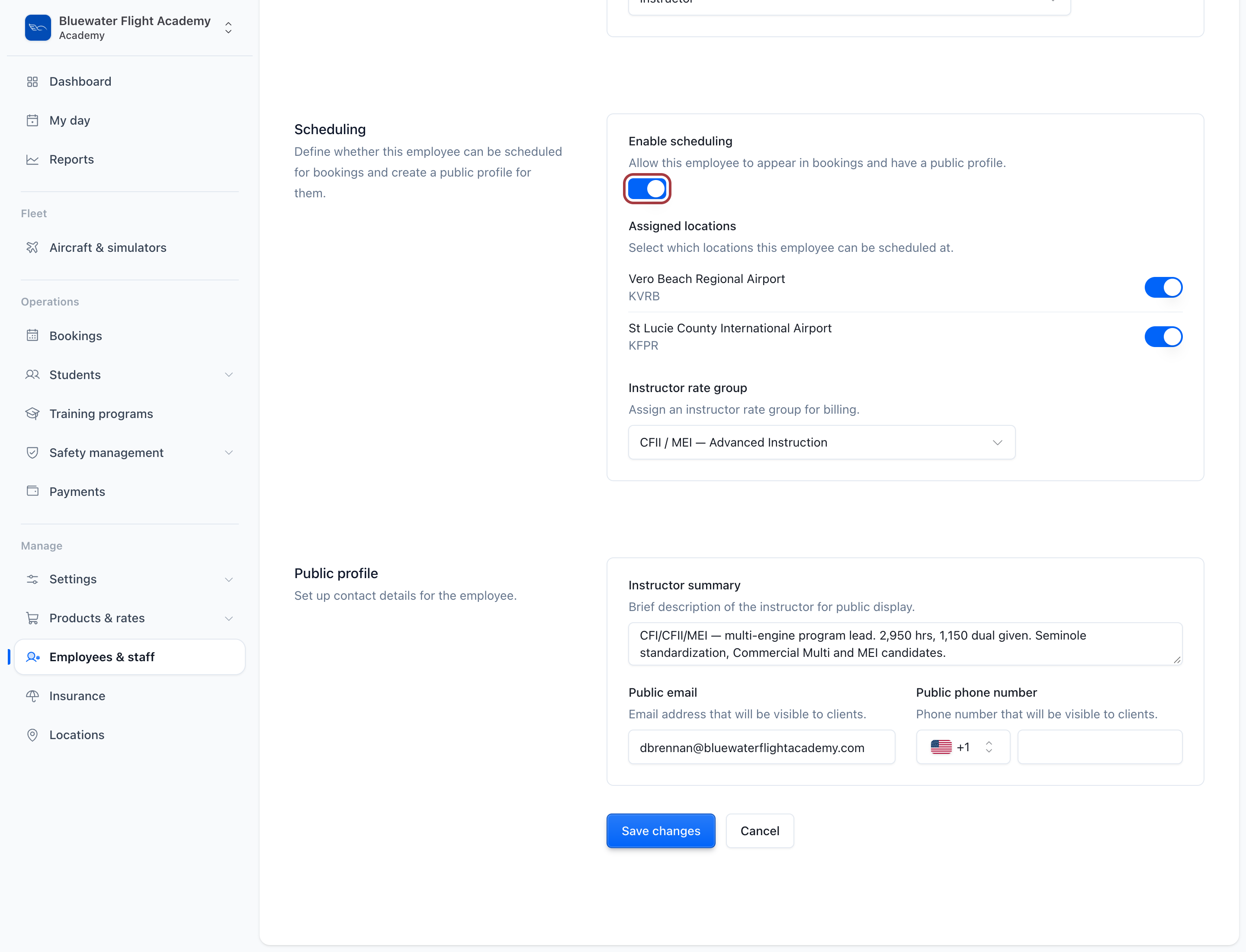
- In Assigned locations, turn on each location where the instructor can be scheduled.
- Optional: Select the Instructor rate group. See Set up instructor rates.
- In Public profile, enter the Instructor summary, the Public email and the Public phone number.
- Click Save changes.
What changes
- In the Instructor field of a booking, staff can select the instructor. The field shows only the instructors who are assigned to the location of the booking. See Create a booking.
- The employee list shows a calendar icon next to the role of the instructor.
- The employee profile shows the Bookings tab and the Upcoming bookings card. Users with the Create/modify bookings for all users permission see a Create booking button.
- The Instructors page of the Student Portal shows the instructor. It shows the public profile and a Book now button.
Fields
- Enable scheduling: Turn it on to show the employee as an instructor in bookings and in the Student Portal.
- Assigned locations: Required (at least one) when Enable scheduling is on. If no locations exist, the section shows No locations defined and an Add new location button.
- Instructor rate group: Optional. The rate group for billing.
- Instructor summary: Optional. A short public description, for example CFI, CFII, MEI. The employee list also shows it below the name.
- Public email: Optional. An email address that students can see. It can be different from the login email address of the instructor.
- Public phone number: Optional. A phone number that students can see.
Things to know
- The fields Assigned locations, Instructor rate group and Public profile are not active when Enable scheduling is off.
- To stop the employee from showing as an instructor, turn off Enable scheduling and click Save changes.
- You can also assign instructors to a location in the location form. See Add a location.
- Students find instructors in the Student Portal. See Find an instructor.