
Track employee qualifications
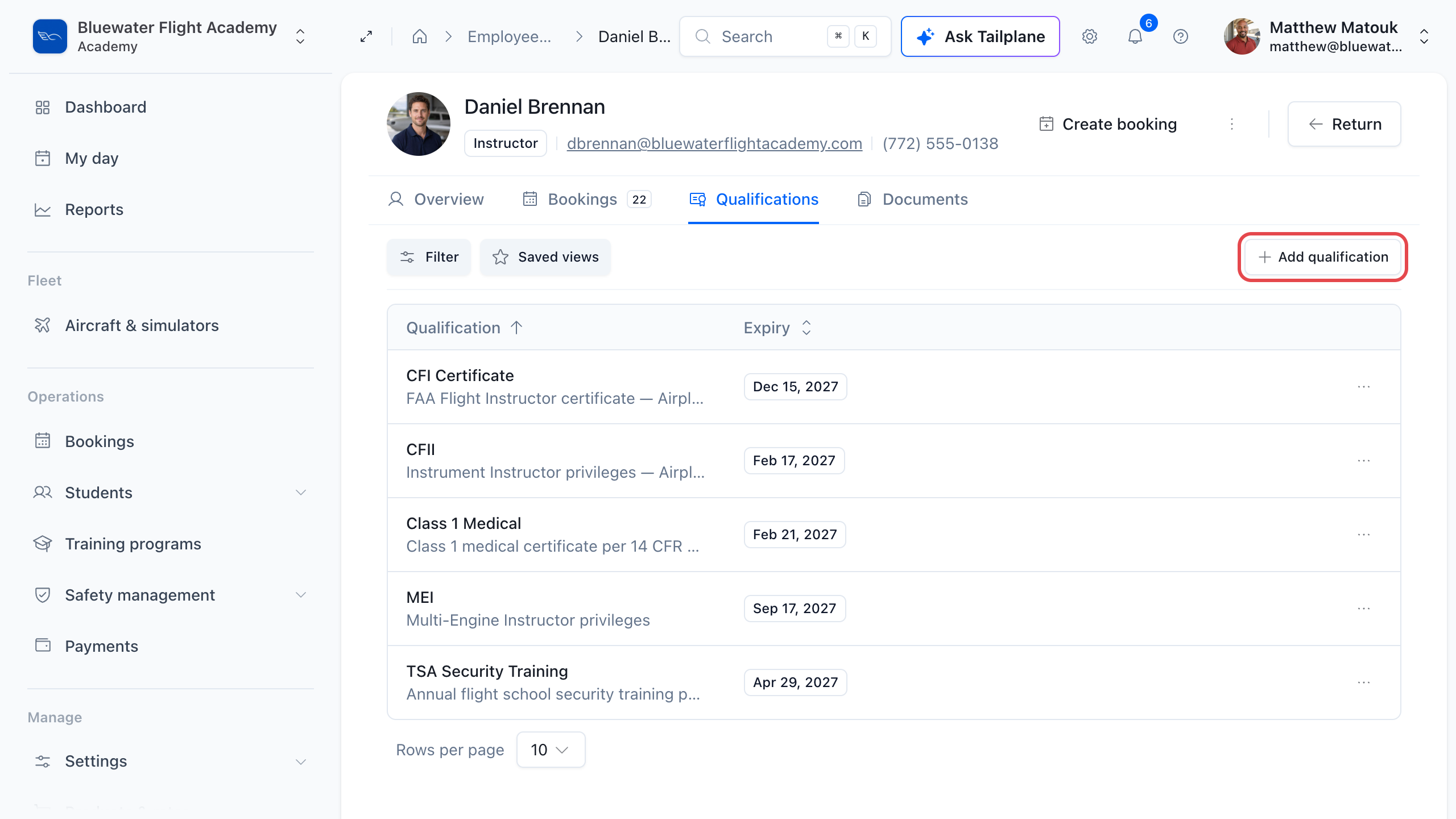
To record a qualification for an employee, open the employee and click the Qualifications tab. Click Add qualification, select the qualification and, if necessary, an expiry date.
Before you start
Set up the qualification types of your organization in Settings > Qualifications. Only the types for Employees only or Everyone are available for employees. See Set up qualification types and expiry reminders.
Add a qualification
- In the sidebar, click Employees & staff.
- Click the name of the employee.
- Click the Qualifications tab.
- Click Add qualification.
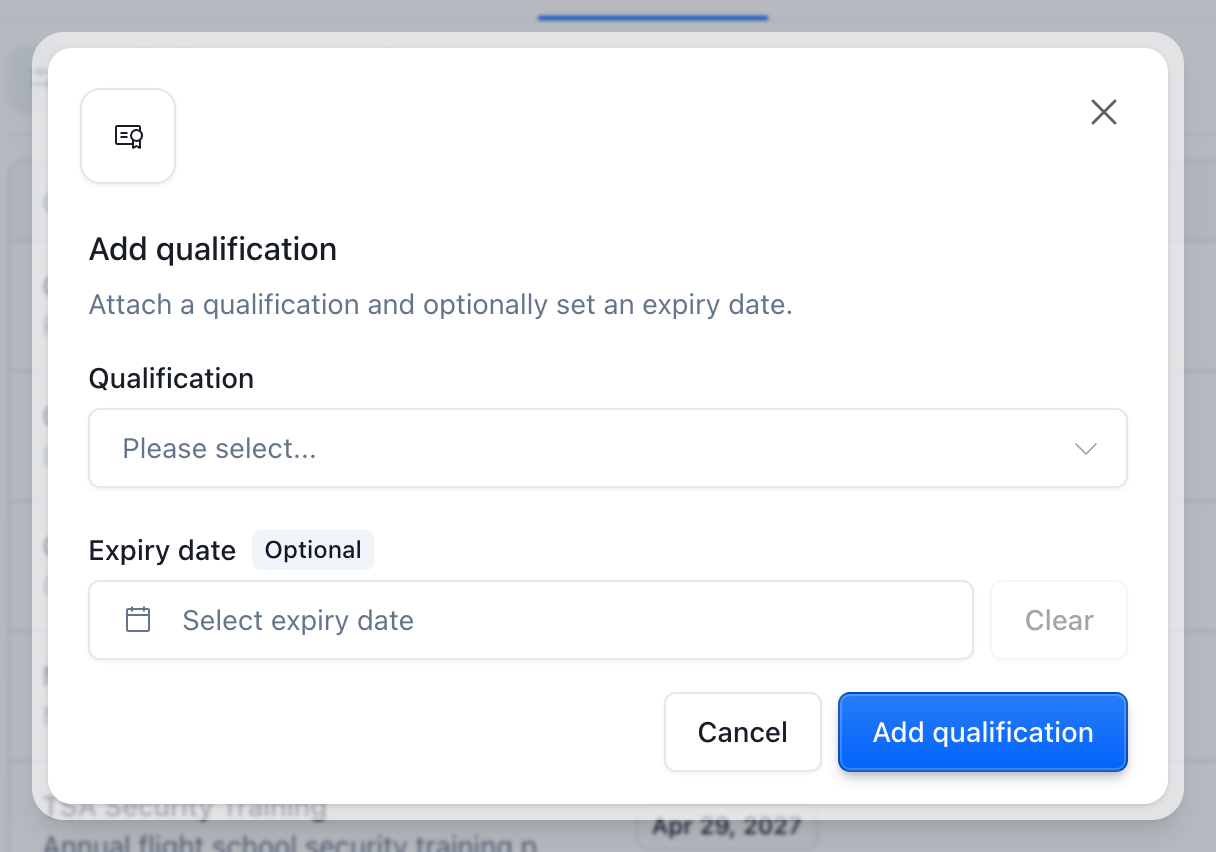
- In Qualification, select the qualification. You can type to search.
- Optional: In Expiry date, select the date when the qualification expires.
- Click Add qualification.
Change the expiry date
- On the Qualifications tab, click the more menu (…) of the qualification.
- Click Edit.
- Select a new Expiry date. To remove the date, click Clear.
- Click Save changes.
Remove a qualification
- On the Qualifications tab, click the more menu (…) of the qualification.
- Click Remove.
- Click Remove to confirm.
WARNING: You cannot undo the removal of a qualification.
Fields
- Qualification: Required. The list shows the qualification types for Employees only and Everyone. It does not show the qualifications that the employee already has.
- Expiry date: Optional. Leave it empty if the qualification does not expire. The date picker shows dates up to five years from today.
Things to know
- The Expiry column shows the expiry date. The date is red when the qualification has expired.
- The Qualifications tab shows a red badge with the number of expired qualifications.
- To see only expired qualifications, click Filter > Expiry > Expired.
- If the qualification type has an expiry reminder, Tailplane sends an email reminder to the employee. The qualification must have an expiry date.
- If there are no qualifications to select, the dialog shows No qualifications available.
- You can only change the expiry date. To change the qualification, remove it and add the correct one.
- To record qualifications for students, see Track student qualifications.