
Publish a safety notice
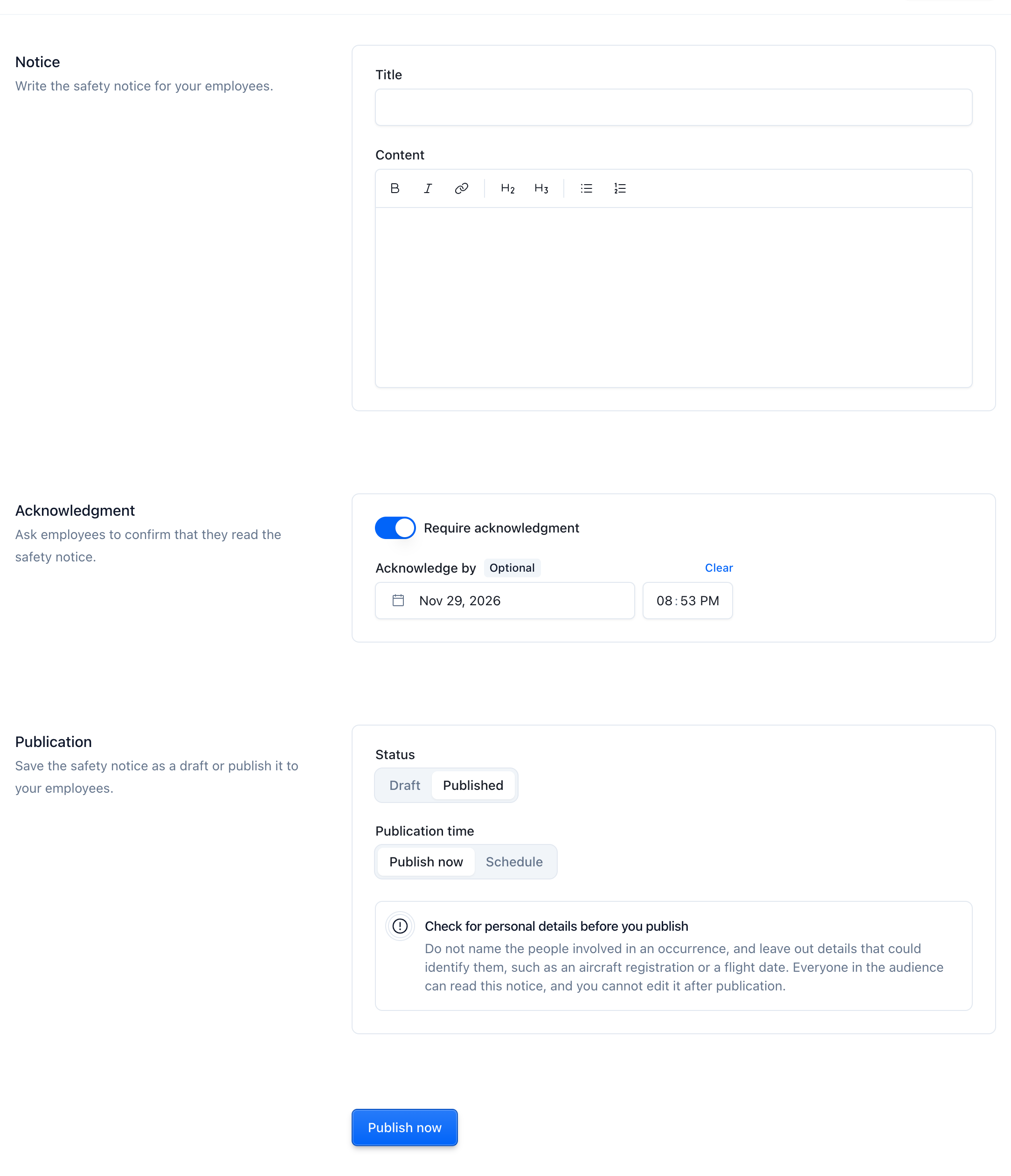
To publish a safety notice, go to Safety management > Safety notices and click New notice. Write the notice, select if employees must acknowledge it, set the status to Published, and then click Publish now or Schedule. All employees get the safety notice.
Publish a safety notice
- Go to Safety management > Safety notices.
- Click New notice.
- Enter the Title.
- Write the Content.
- Optional: turn on Require acknowledgment and set Acknowledge by.
- In Publication, set Status to Published.
- In Publication time, select Publish now or Schedule.
- If you selected Schedule, set the Publication date and time.
- Read the warning about personal details. Remove names and other details that can identify a person.
- Click Publish now or Schedule.
Save a draft and publish it later
- In the New safety notice form, keep Status set to Draft.
- Click Create draft.
- When the notice is ready, open it from the Safety notices list.
- Click Publish.
- Click Publish safety notice.
Track the acknowledgments
- Go to Safety management > Safety notices.
- See the Acknowledgments column for the number and the percentage of acknowledgments.
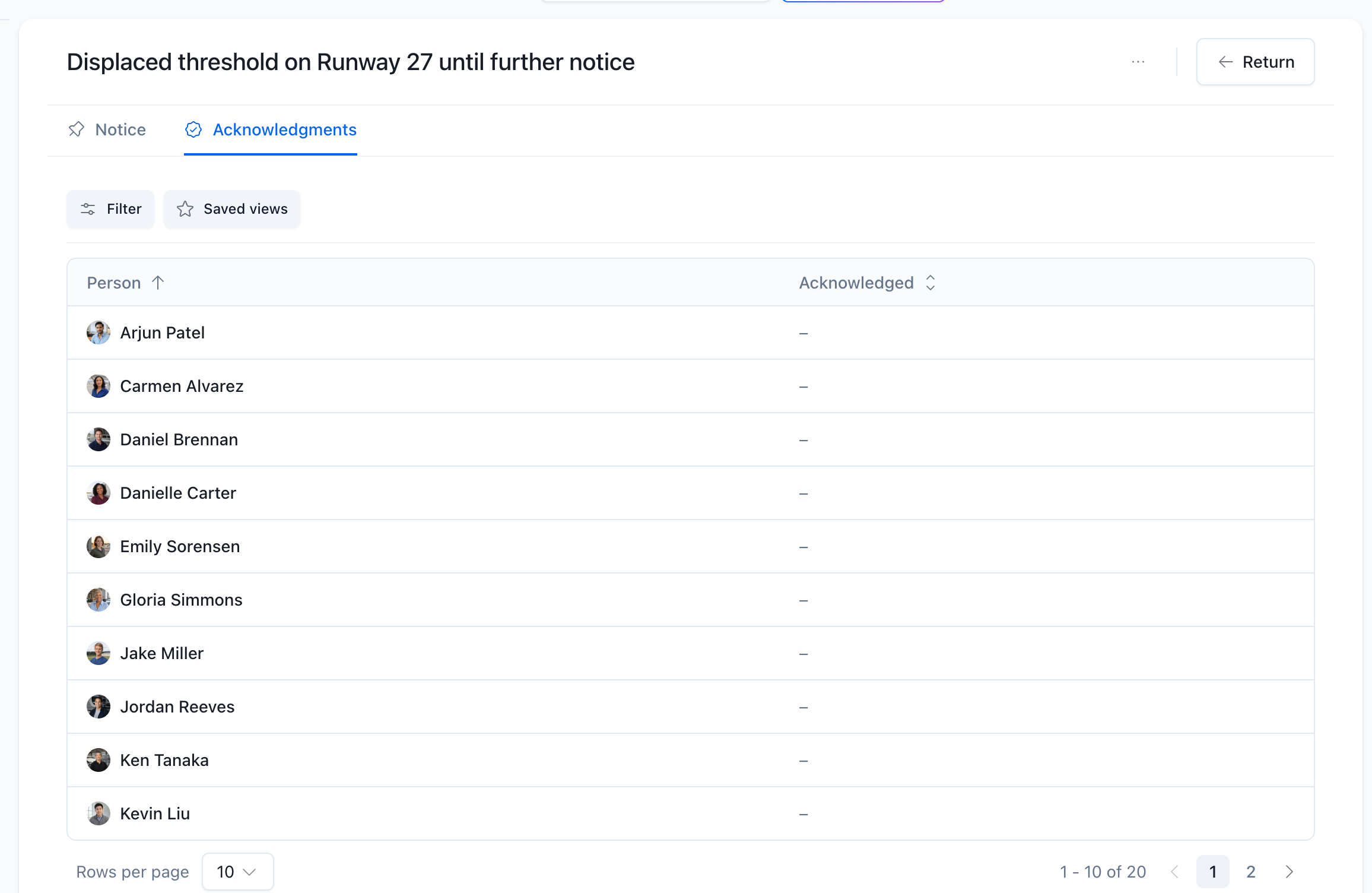
- Click the reference number of the notice.
- Click the Acknowledgments tab.
- Click Filter and select Outstanding to see who did not acknowledge the notice.
Acknowledge a safety notice
- Go to Safety management > Safety notices.
- Click the reference number of the notice.
- Read the notice.
- In the alert "You must acknowledge this safety notice", click Acknowledge.
Fields
- Title: required. 255 characters or fewer.
- Content: required. The text of the notice. You can use formatted text.
- Require acknowledgment: when on, each employee must confirm that they read the notice.
- Acknowledge by: optional. The date and time when the acknowledgment is due. The default is 7 days from now. For a scheduled notice, it must be after the publication.
- Status: Draft or Published.
- Publication time: Publish now or Schedule.
- Publication date and time: required for Schedule. It must be in the future.
Things to know
- A safety notice has the status Draft, Scheduled or Published. Tailplane publishes a scheduled notice at the publication time.
- At the publication, each employee of your organization gets a notification. If the notice requires acknowledgment, each employee also gets an acknowledgment request.
- Only users with the Manage policy & documentation permission see drafts, the status and the Acknowledgments tab. Employees with the View organization data permission see the published notices.
- You can edit or delete a notice only before its publication. Click the ⋯ menu and then Edit or Delete.
- Safety notices go to employees only. Students do not see them.
CAUTION: You cannot undo a publication, and you cannot edit a published notice. Do not name the people involved in an occurrence. Leave out details that can identify them, such as an aircraft registration or a flight date.