
Import students from a spreadsheet
To import students, upload an Excel or CSV file on the Import students page. Tailplane reads the file, shows the records it found and creates the students that you select.
Before you start
- Prepare an Excel file (.xls or .xlsx) or a CSV file. Put one student on each row.
- You can use your own file or the Tailplane template. The template has the columns Name, Phone Number and Email.
- Only the name is necessary. The email address and the phone number are optional.
Import students
- In the sidebar, click Students > All students.
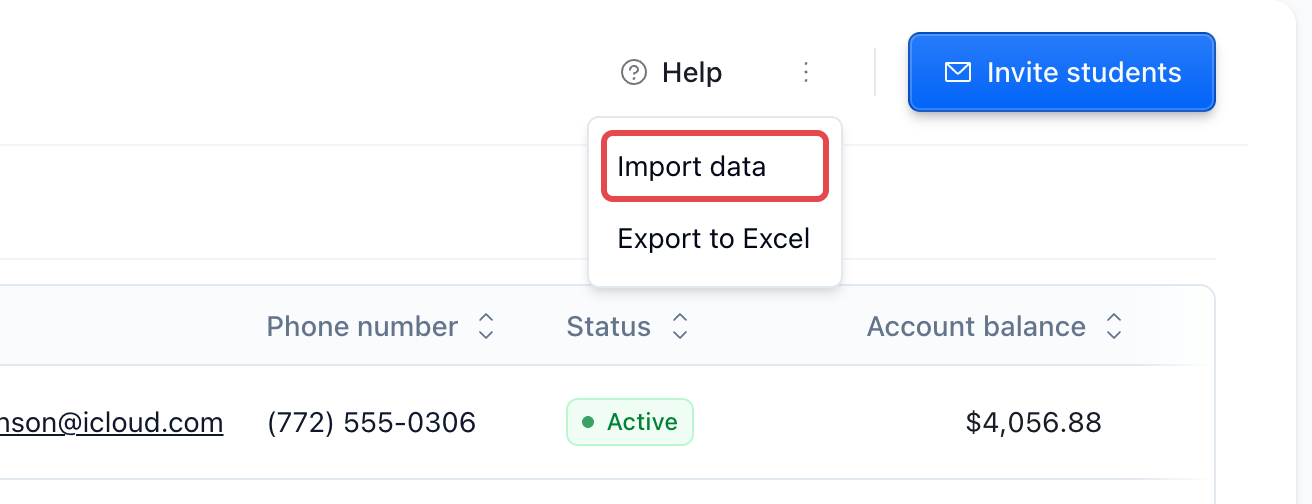
- Click the more menu (⋮) next to Help.
- Click Import data.
- Optional: To get the template, click download a template.
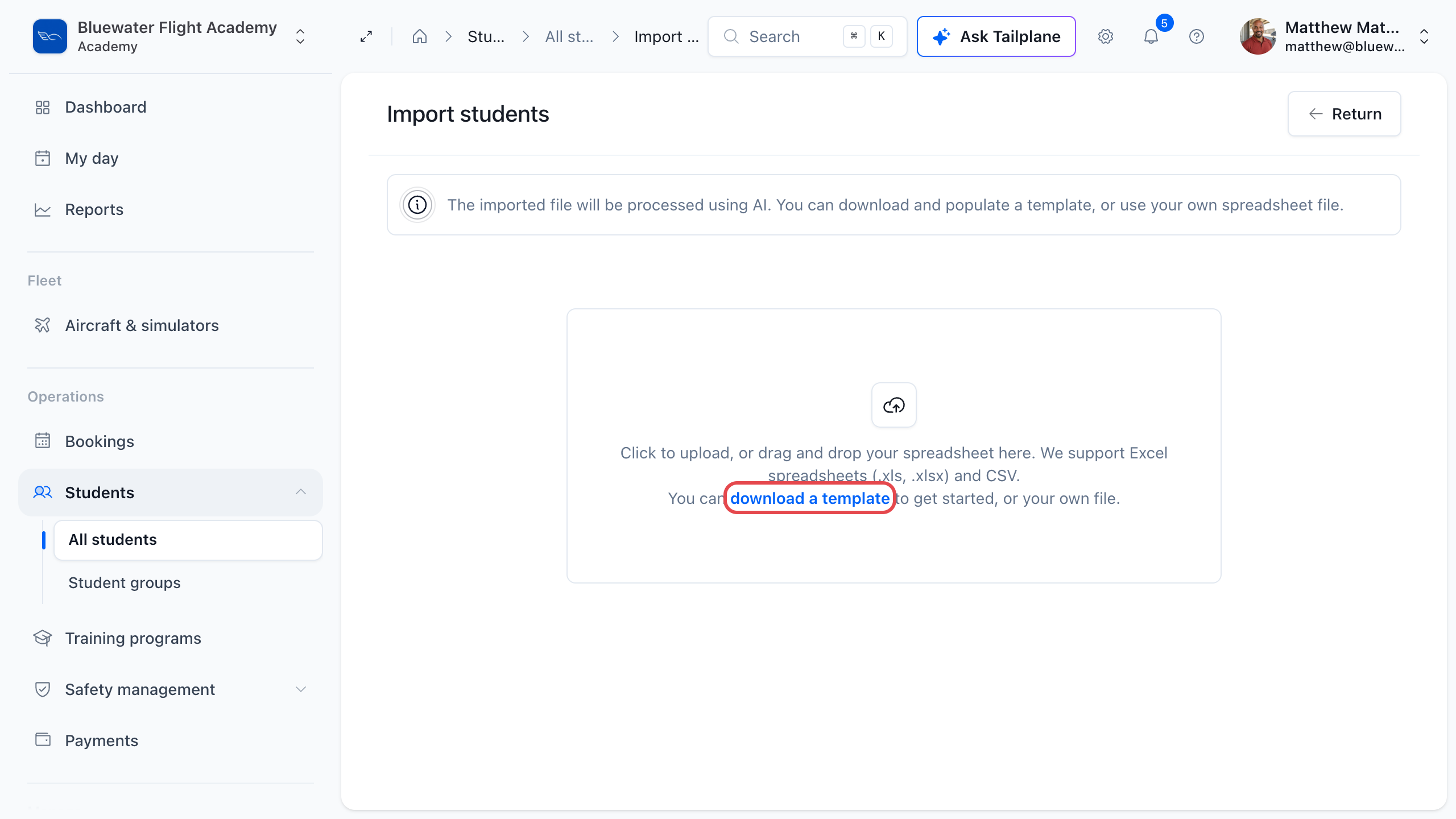
- Click the upload area and select your file. You can also drag the file onto the upload area.
- When the upload is complete, click Begin import.
- Wait while Tailplane processes the file. A table shows the records that Tailplane found.
- In the Import? column, select the records to import. Clear the records that you do not want.
- Click Confirm and create.
The page shows Import successful. Click View students to see the list, or click Import another file.
Import statuses
| Status | Meaning |
|---|---|
| Ready | Tailplane can import the record. Tailplane selects these records for you. |
| Duplicate | A student with the same name or the same email address is already in your organization. You cannot select the record. |
| Invalid | The name is empty, the email address is not valid, or the phone number is not valid. You cannot select the record. |
Things to know
- Tailplane uses AI to read the file. Check the names, email addresses and phone numbers in the review table before you click Confirm and create.
- Tailplane sends an invitation email to each imported student who has an email address. These students get the status Invited.
- Students without an email address get the status Active and do not get an invitation. See Add students without an email address or phone number.
- If a phone number does not start with a country code (+), Tailplane uses the default country of your organization.
- If the file has two rows with the same name, the review table shows only one of them.
- You can upload one file at a time. To use a different file, click Try another file.
- If the file has no student data, the page shows No students found. Click Try another file.