
Add students without an email address or phone number
You can add a student with a name only. In the Invite students dialog, leave Email and Phone number empty. The student gets the status Active but cannot sign in to the Student Portal.
CAUTION: You cannot add an email address to a student later. The Edit details form does not have an Email field. If the student will need online access, enter the email address when you add the student.
Add a student without contact details
- In the sidebar, click Students > All students.
- Click Invite students.
- In Name, enter the full name of the student.
- Leave Email empty.
- Optional: Leave Phone number empty. You can also enter a phone number without an email address.
- To add more students, fill in the next rows. To add a row, click Add another student.
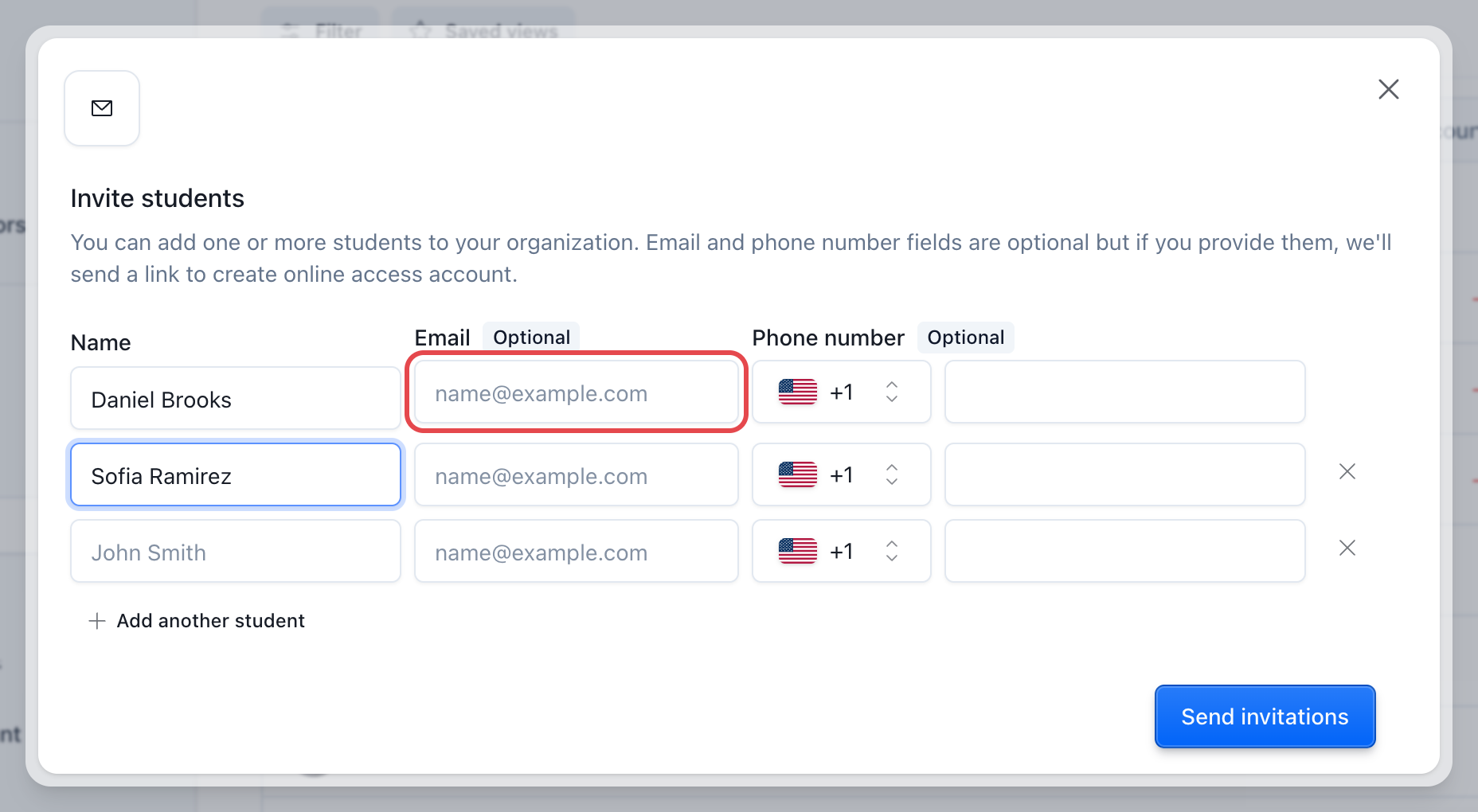
- Click Send invitations.
What the student can do
- The student shows in Students > All students with the status Active.
- Staff can select the student in a booking. See Create a booking.
- Staff can enroll the student in a training program and record lesson results. See Enroll a student in a training program.
Things to know
- Tailplane does not send an invitation. It sends an invitation only to an email address. It does not send a message to a phone number.
- The student does not have a Tailplane account. The student cannot sign in to the Student Portal and cannot make bookings there.
- Tailplane does not send qualification expiry reminders to a student without an account. See Track student qualifications.
- In an import file, a row without an email address also creates a student without an account. See Import students from a spreadsheet.