
View a student profile
To open a student profile, go to Students > All students and click the name of the student. The profile shows the details, bookings, money, qualifications, documents and training progress of the student in tabs.
Open a student profile
- In the sidebar, click Students > All students.
- Click the name of the student.
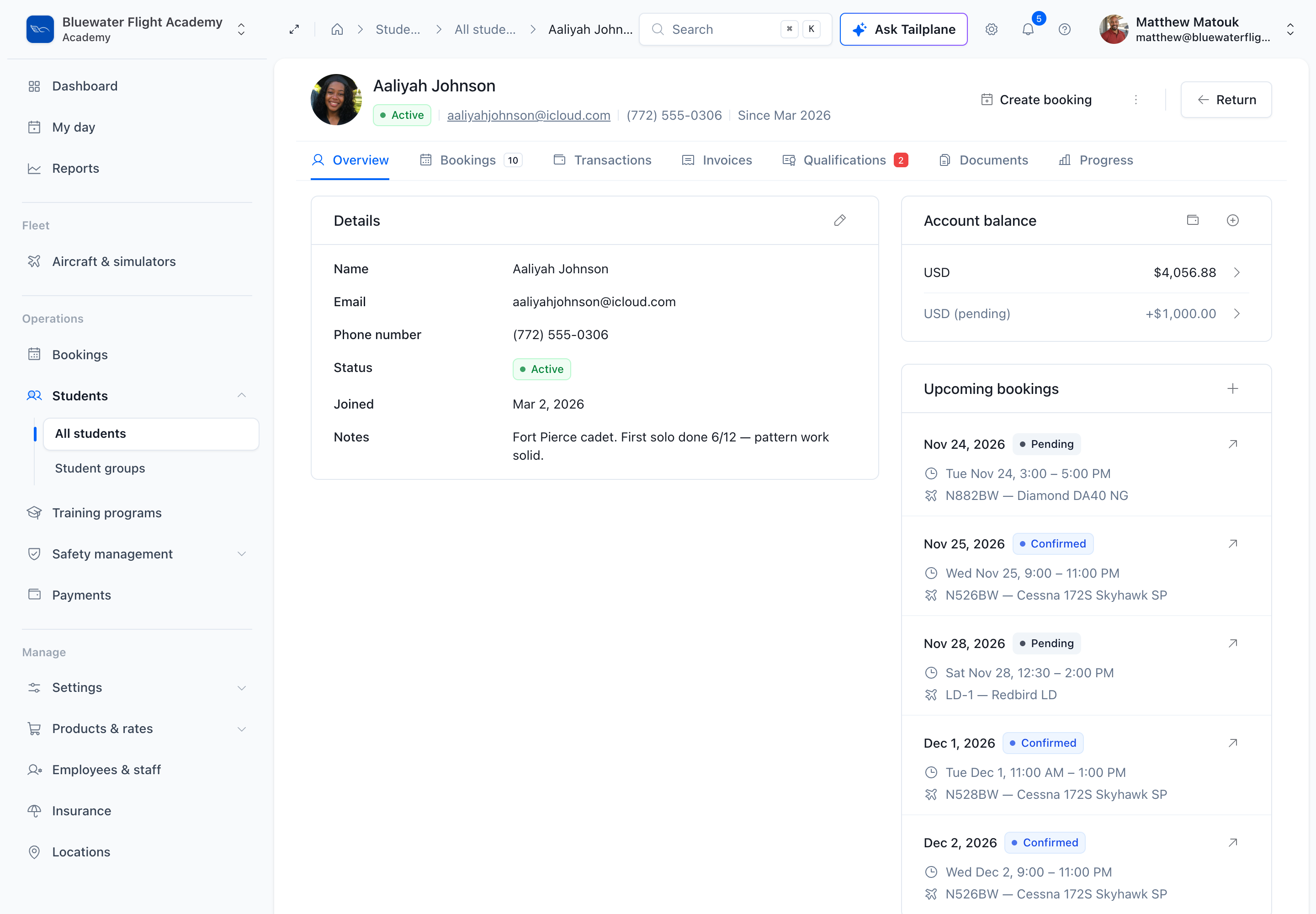
The header shows the name, the status, the email address, the phone number and the month when the student joined. To go back to the list, click Return.
Tabs
| Tab | Content |
|---|---|
| Overview | The Details, Account balance, Upcoming bookings, Training programs and Groups cards. |
| Bookings | All bookings of the student. The badge shows the number of upcoming bookings. |
| Transactions | Payments, charges and other transactions of the student. Only users with the View financial data permission see this tab. |
| Invoices | The invoices of the student. Only users with the View financial data permission see this tab. |
| Qualifications | The qualifications of the student. A red badge shows the number of expired qualifications. |
| Documents | The files that staff uploaded for the student. |
| Progress | The progress of the student in each training program. |
Overview cards
- Details: Name, email address, phone number, status, the date when the student joined, and notes.
- Account balance: The balance in each currency, and pending amounts. Only users with the View financial data permission see this card. See Manage account balances.
- Upcoming bookings: The next bookings of the student. To create a booking, click the plus icon. See Create a booking.
- Training programs: The programs of the student, with the completion percentage. See Enroll a student in a training program.
- Groups: The student groups of the student. See Organize students into groups.
Edit the details of a student
You need the Manage students permission for this task.
- Open the student profile.
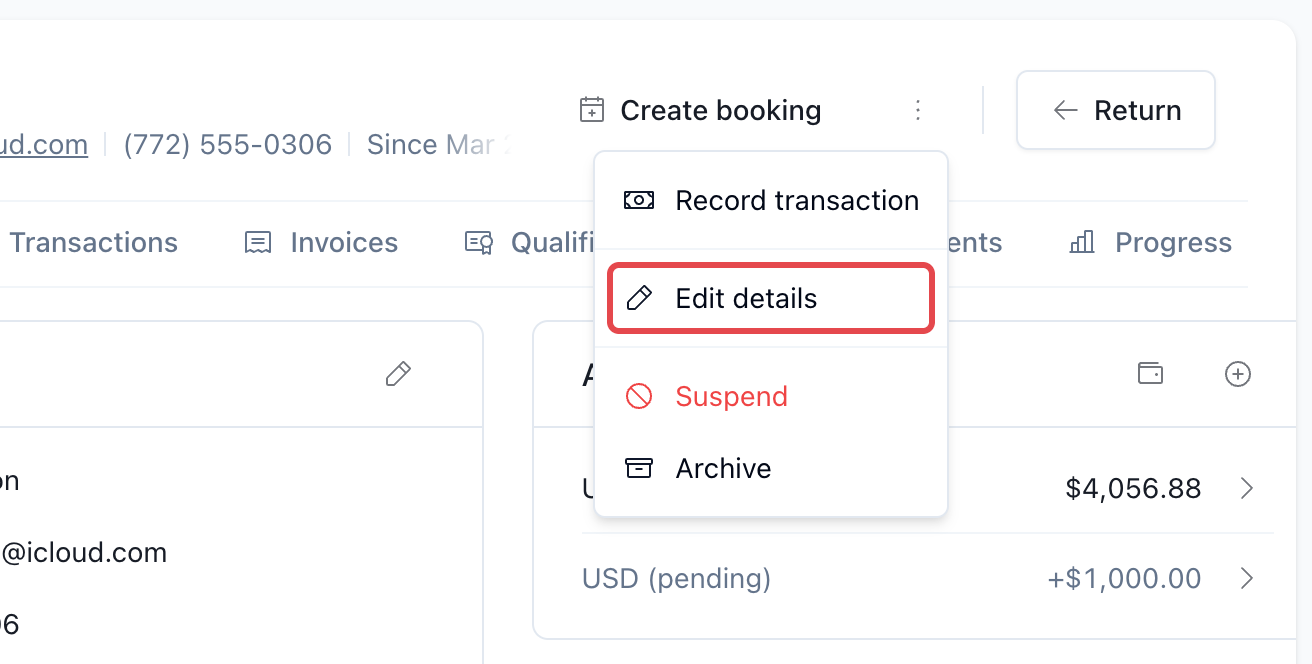
- Click the more menu (⋮) next to Create booking.
- Click Edit details. You can also click the pencil icon in the Details card.
- Change the fields.
- Click Save changes.
Fields
- Name: Required.
- Phone number: Optional. The number must be a valid phone number.
- Picture: Optional. The profile picture of the student.
- Status: Required. Invited, Active, Suspended or Archived.
- Joined: Required. The date when the student joined your organization.
- Notes: Optional. Internal notes about the student. Up to 10,000 characters.
Suspend, archive, restore or delete a student
Open the student profile and click the more menu (⋮) next to Create booking. The menu shows the actions for the current status:
- Suspend: The student loses access to their account and data for your organization. To give access again, click Unsuspend.
- Archive: The student cannot create new bookings or access their account. Archived students do not show in the default list.
- Restore: Shows for an archived student. The student can schedule flights and lessons again.
- Delete permanently: Shows only for an archived student.
WARNING: You cannot undo Delete permanently. To keep the records of a student who left, use Archive.
Things to know
- You cannot change the email address of a student. The Edit details form does not have an Email field.
- A suspended or archived student shows an alert on the Overview tab. With the Manage students permission, you can click Unsuspend now or Reactivate now in the alert.
- The Create booking button shows only if you have the Create/modify bookings for all users permission.
- With the Process payments permission, the more menu also shows Record transaction. See Record a transaction.
- In the All students list, the more menu (…) of each row has links to the tabs of the student.