
Track a student's progress
To see the progress of a student, open the student and click the Progress tab. Select a training program to see the completion, the charts, and the result of each activity.
Open the progress of a student
- In the sidebar, click Students > All students.
- Click the name of the student.
- Click the Progress tab.
- If the student has more than one program, select the program in the list at the top left.
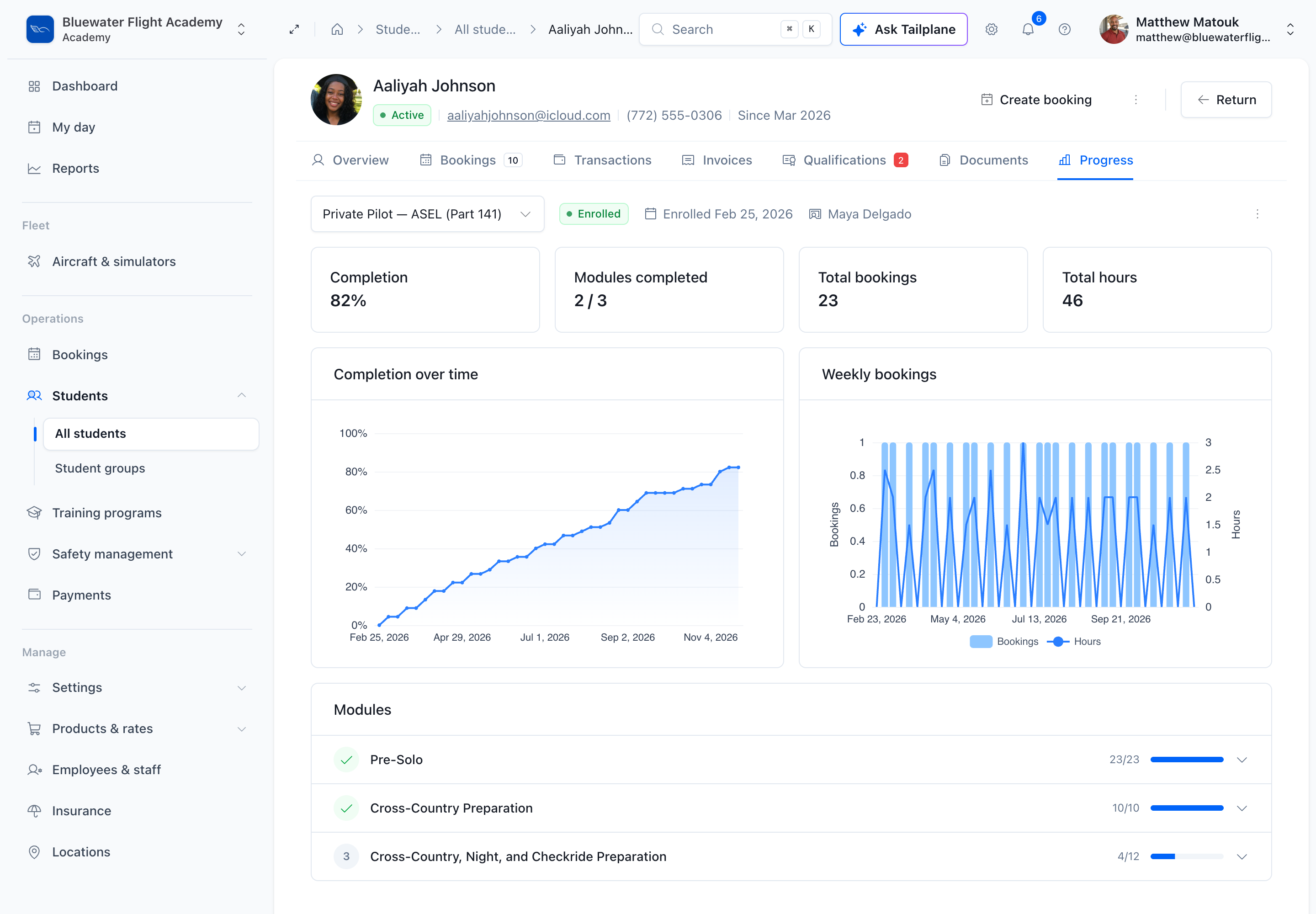
What the page shows
- Header: The enrollment status (Enrolled or Completed), the enrollment date and the completion date. It also shows the main instructor of the student. This is the instructor who taught most of the last five lessons with recorded results.
- Completion: The number of completed activities divided by the number of all activities in the program.
- Modules completed: The number of modules with all activities completed, and the total number of modules.
- Total bookings: The number of bookings that have at least one recorded result for this program.
- Total hours: The scheduled duration of these bookings.
- Completion over time: A chart of the completion percentage.
- Weekly bookings: A chart of the bookings and hours in each week, from the enrollment date to the completion date or today.
- Modules: Each module with the number of completed activities and a progress bar.
See the results of each activity
- In the Modules card, click a module. The module opens and shows its activities.
- Read the type and the status of each activity. Below each activity, a list shows the bookings with a result for it: the date, the result, the instructor and the aircraft.
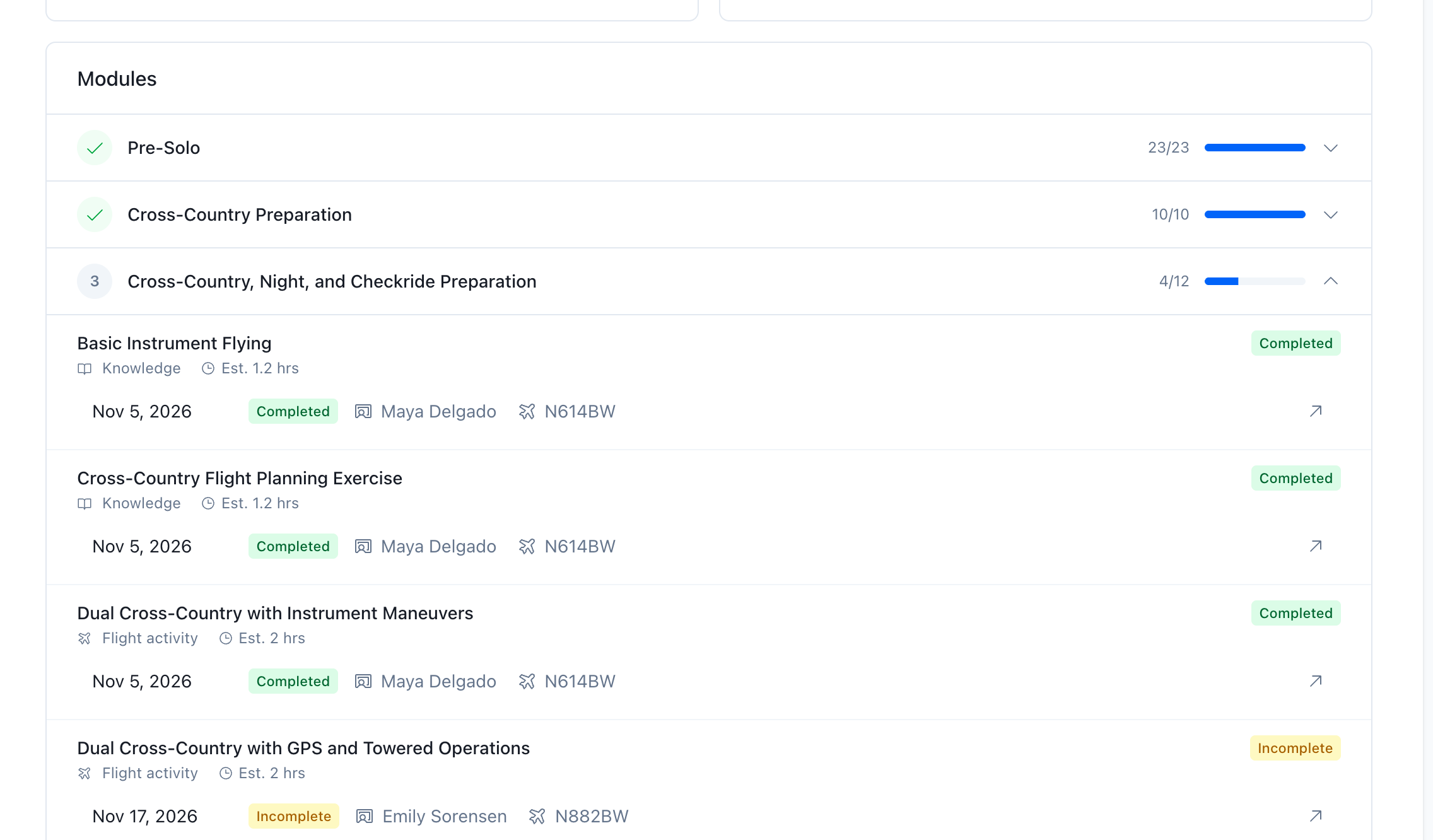
- To open a booking, click it in the list.
Activity statuses
| Status | Meaning |
|---|---|
| Not started | The activity has no result. |
| Incomplete | The last result is Incomplete. |
| Failed | The last result is Failed. |
| Completed | The last result is Completed. |
| Expired | The last result was Completed, but the completion is no longer valid. |
Mark a program as complete
You need the Manage training records permission for this task.
- On the Progress tab, select the program.
- Click the more menu (⋮) on the right.
- Click Mark as complete.
- Click Complete.
Tailplane marks the program as completed today. If not all activities are complete, the dialog shows the completion percentage before you confirm.
Things to know
- You record results in the debrief of a booking. See Record lesson results in the debrief.
- The Training programs card on the Overview tab also shows the completion percentage of each program.
- To change the enrollment date or the completion date, click the more menu (⋮) and click Edit. See Enroll a student in a training program.
- If the student has no programs, the tab shows No courses.
- Students can see their own progress in the Student Portal. See Track your training progress.