
Record lesson results in the debrief
To record the result of a lesson, open the debrief of the booking and go to the Training section. For each activity, click Incomplete, Failed or Completed. Tailplane saves the result immediately and updates the progress of the student.
Before you start
- Enroll the student in the training program. See Enroll a student in a training program.
- The Debrief button shows only after the start time of the booking. The booking status must be Pending or Confirmed. See Debrief a booking.
Record the results
- Open the booking from the schedule or from the booking list.
- Click Debrief.
- Go to the Training section. You can click Training in the steps at the top of the dialog.
- For each activity, click Incomplete, Failed or Completed.
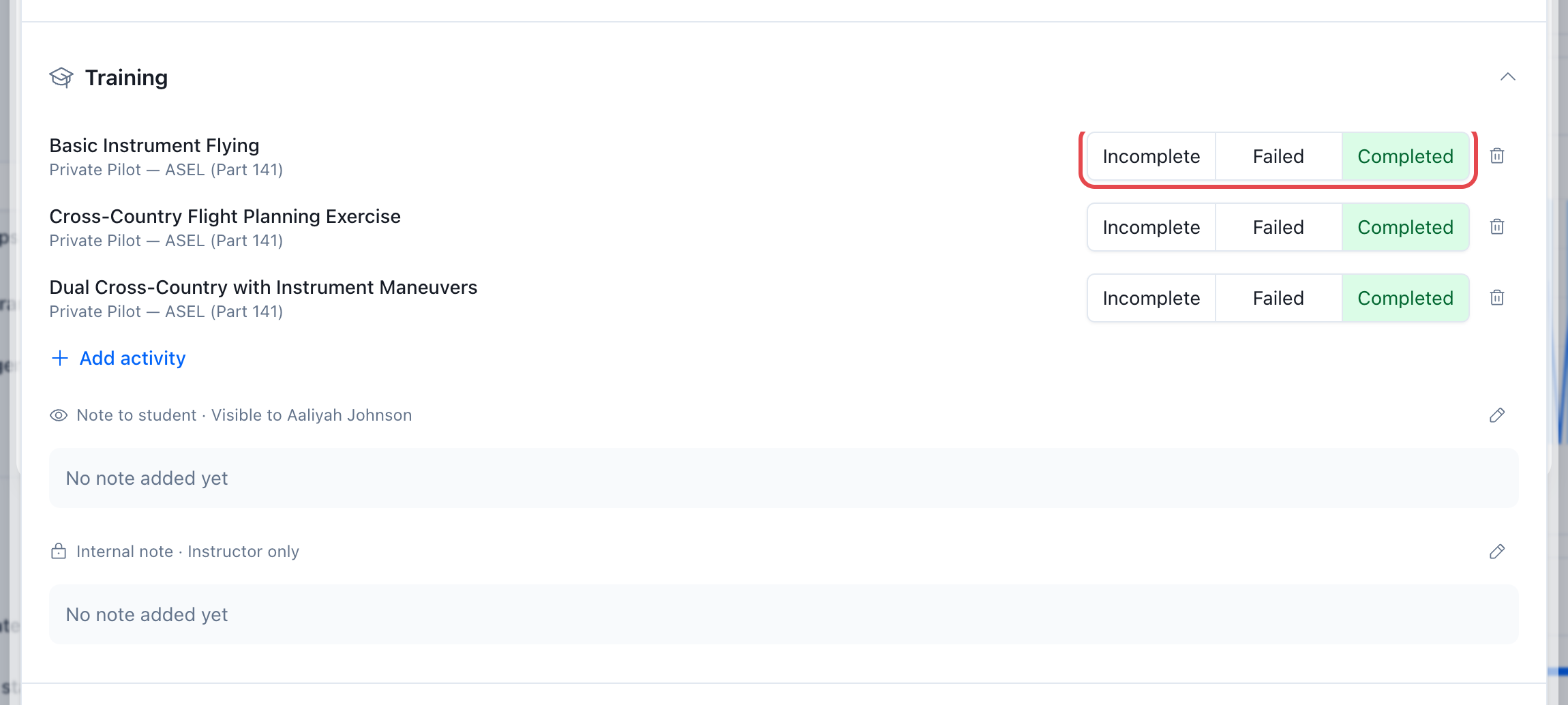
- Optional: To add an activity, click Add activity and select the activity.
- Optional: To remove an activity from the booking, click the trash icon (Remove activity).
Add notes
You need the Create/modify bookings for all users permission to add notes.
- In the Training section, click the pencil icon (Edit note) of the note.
- Enter the text.
- Click Save.
- Note to student: The student sees this note in the booking details in the Student Portal. The label shows the name of the student.
- Internal note: The Student Portal does not show this note. The label shows Instructor only.
Results
| Result | Effect on progress |
|---|---|
| Completed | The activity counts as complete. The completion percentage of the program goes up. |
| Incomplete | The activity does not count as complete. It shows in Needs attention when you select an activity for the next booking. |
| Failed | The activity does not count as complete. It shows in Needs attention when you select an activity for the next booking. |
Things to know
- There is no save button for the results. Tailplane saves each click immediately.
- The activity from the Activity field of the booking shows first, without a result. When you click a result, Tailplane saves it.
- An activity that you add with Add activity gets the result Completed. Click another result if necessary.
- The Add activity list shows the activities of the programs of the student. It shows Needs attention (incomplete, failed and expired activities) and Next up (the next activities to start) first. The activities that are already in the section are not available.
- Tailplane uses the end time of the booking as the date of the result.
- The Training section shows when the booking has an instructor, or when the booking has no aircraft. It does not show for a booking with an aircraft and no instructor.
- Users without the Manage training records permission can see the results but cannot change them.
- You can change a result later. Open the debrief again and click another result.
- To see the results of all lessons, see Track a student's progress.